1. Automatically Log In
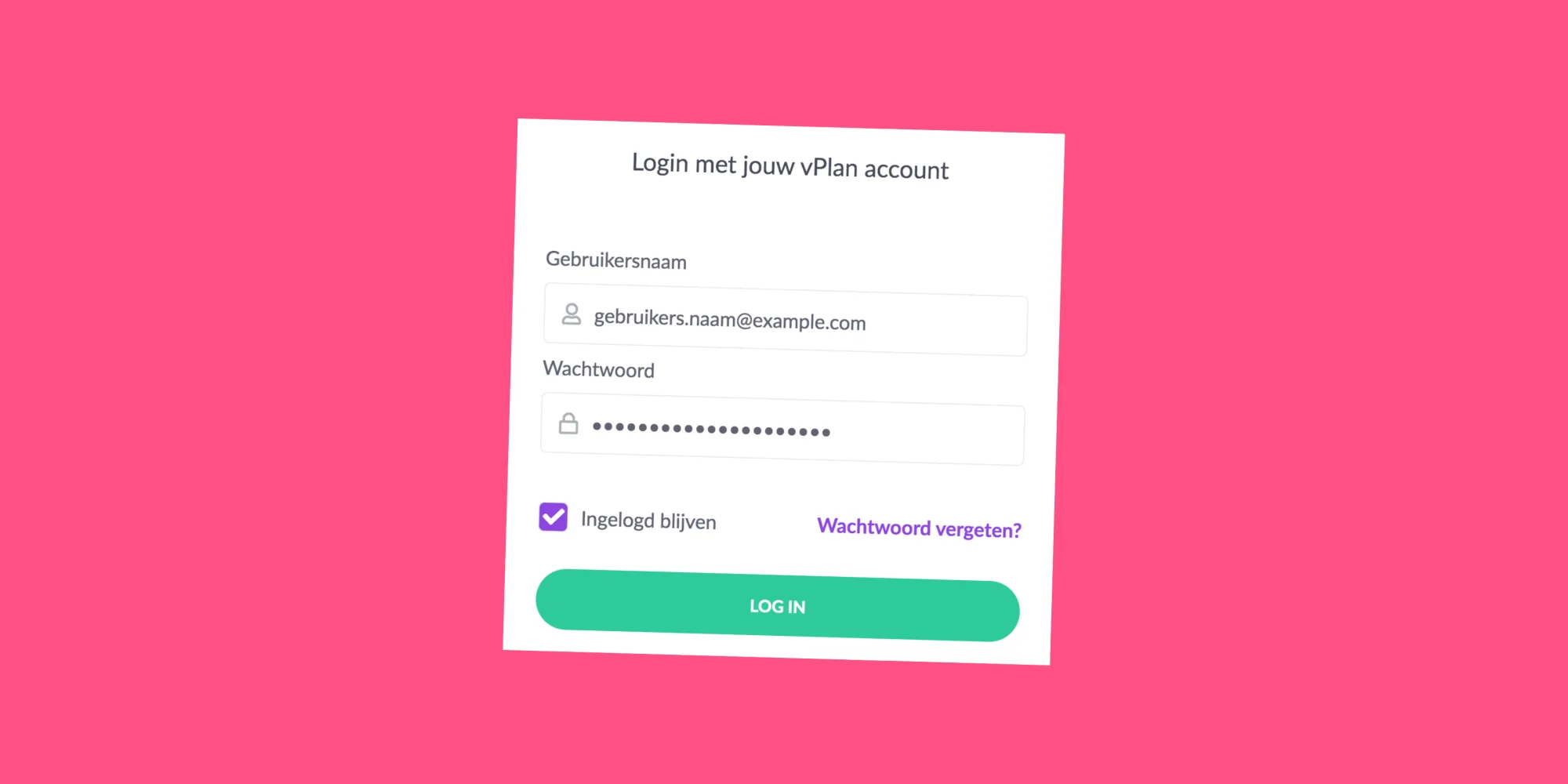
Nobody enjoys having to log in again when using software daily. Did you know that there's an option in the login screen to stay logged in? Handy!
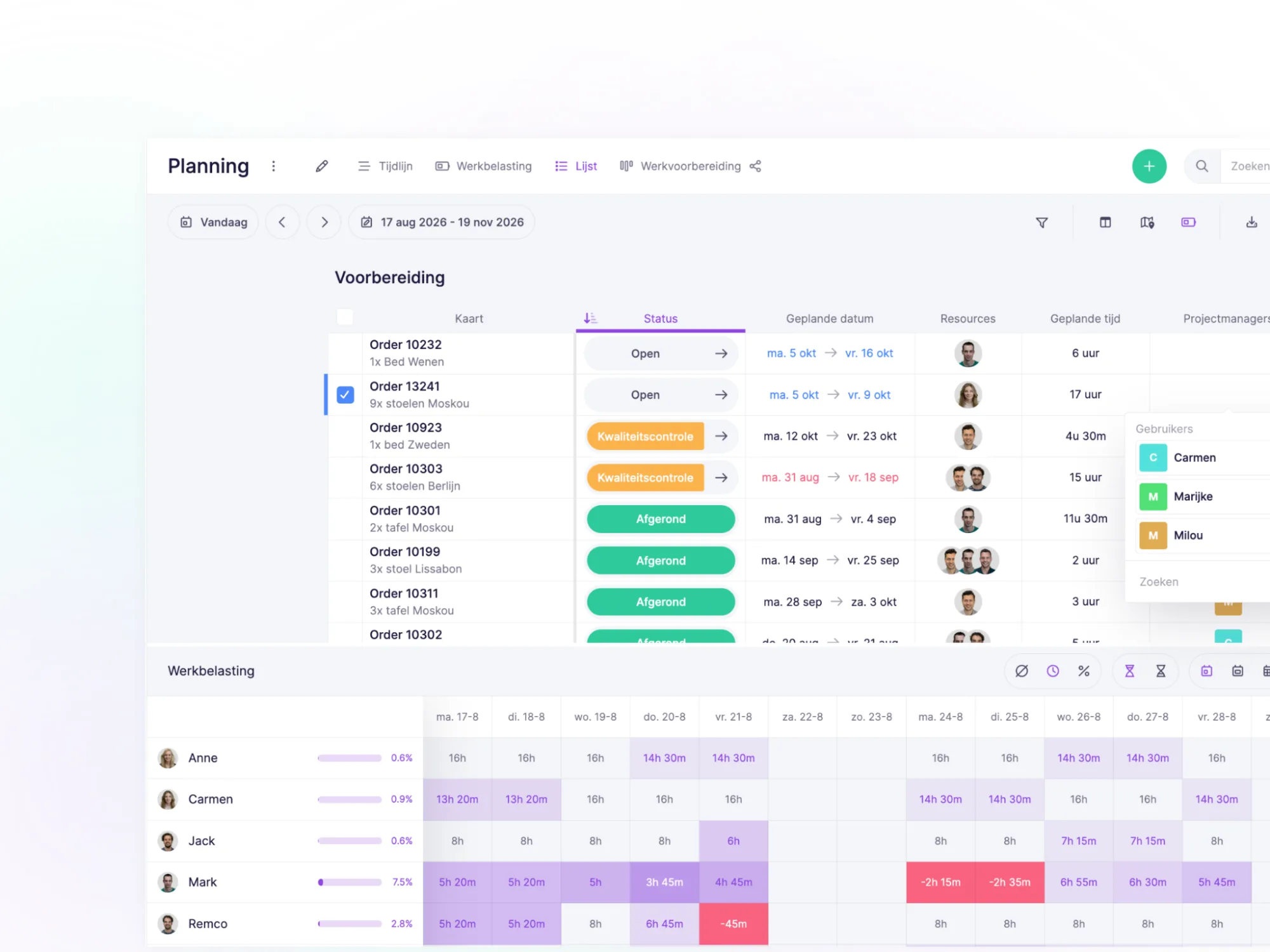
In calendar view, you can show a lot of information, from resources and non-available days to capacity bars and information within cards. By using the filter icon, you can determine which information is relevant to you. We automatically save this in your user profile. When you log in again, we'll show the last setting.
2. Customize Card Display in Calendar View
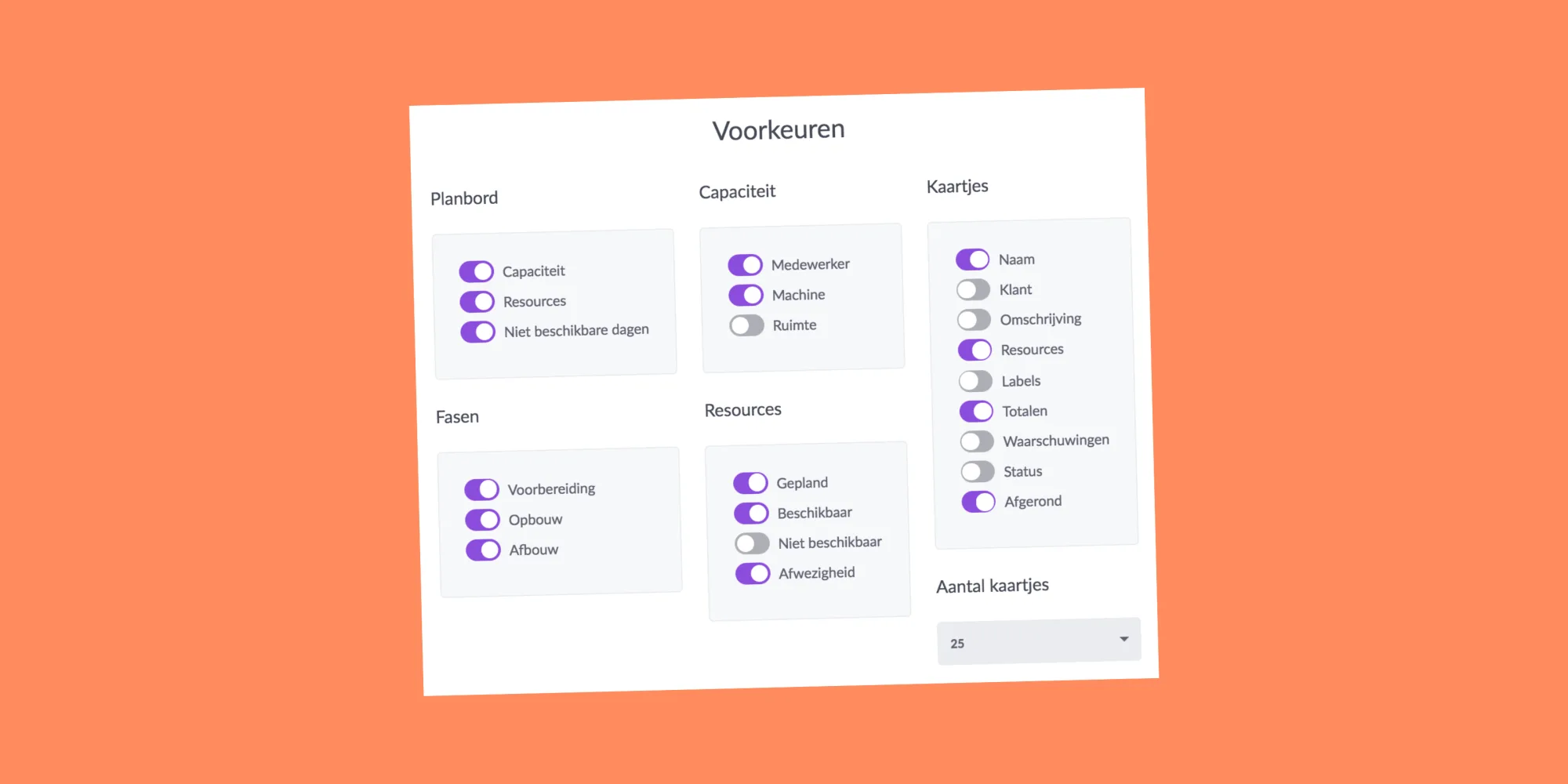
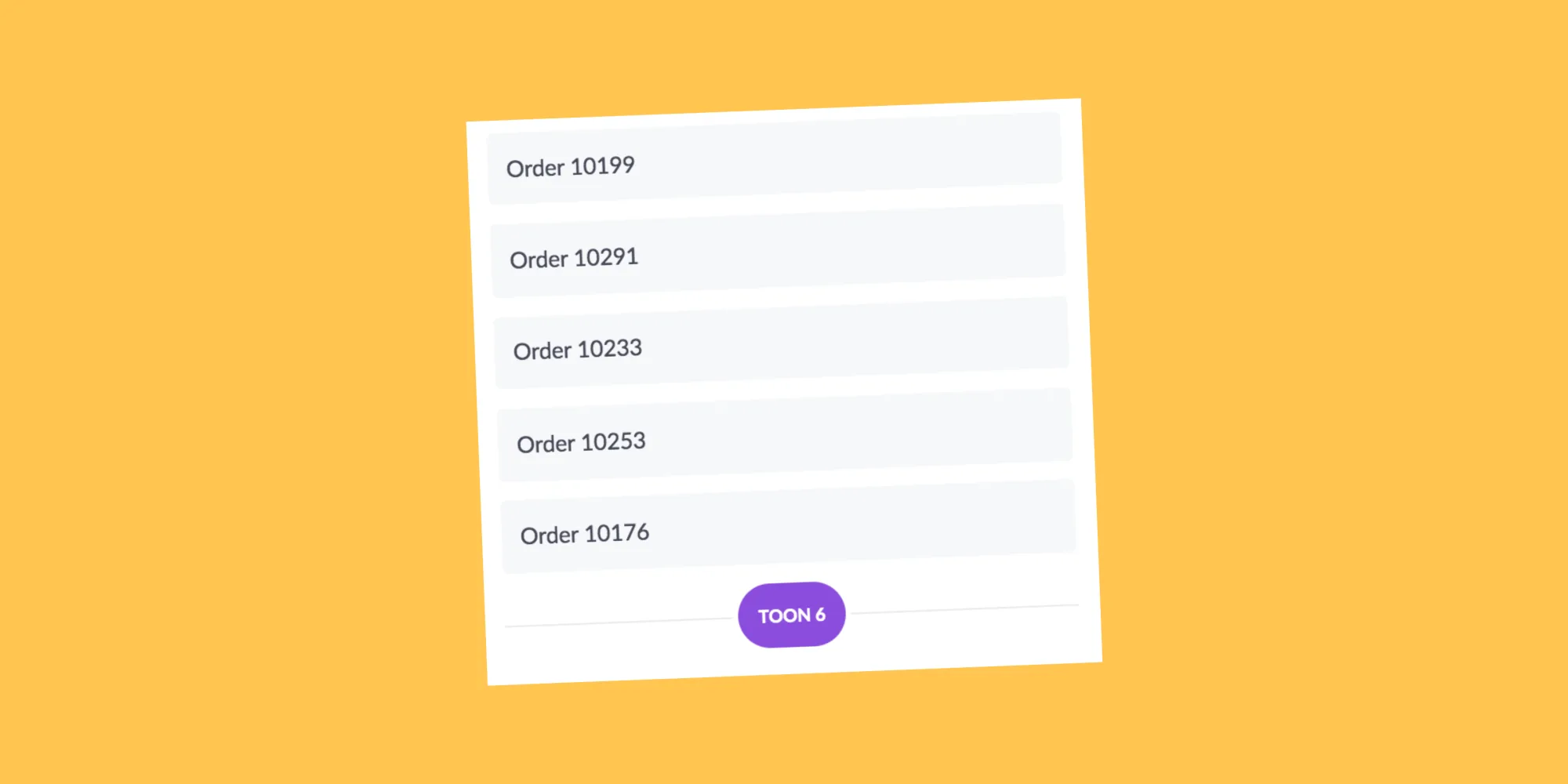
Do you deal with a lot of orders, tasks, and/or assignments daily? We offer you the possibility to determine how many cards you want to display in the calendar view. Of course, the option to always show all cards remains. This creates more overview and speed.
3. Search Specific Fields and Attributes in the Backlog
4. Specific search in backlog
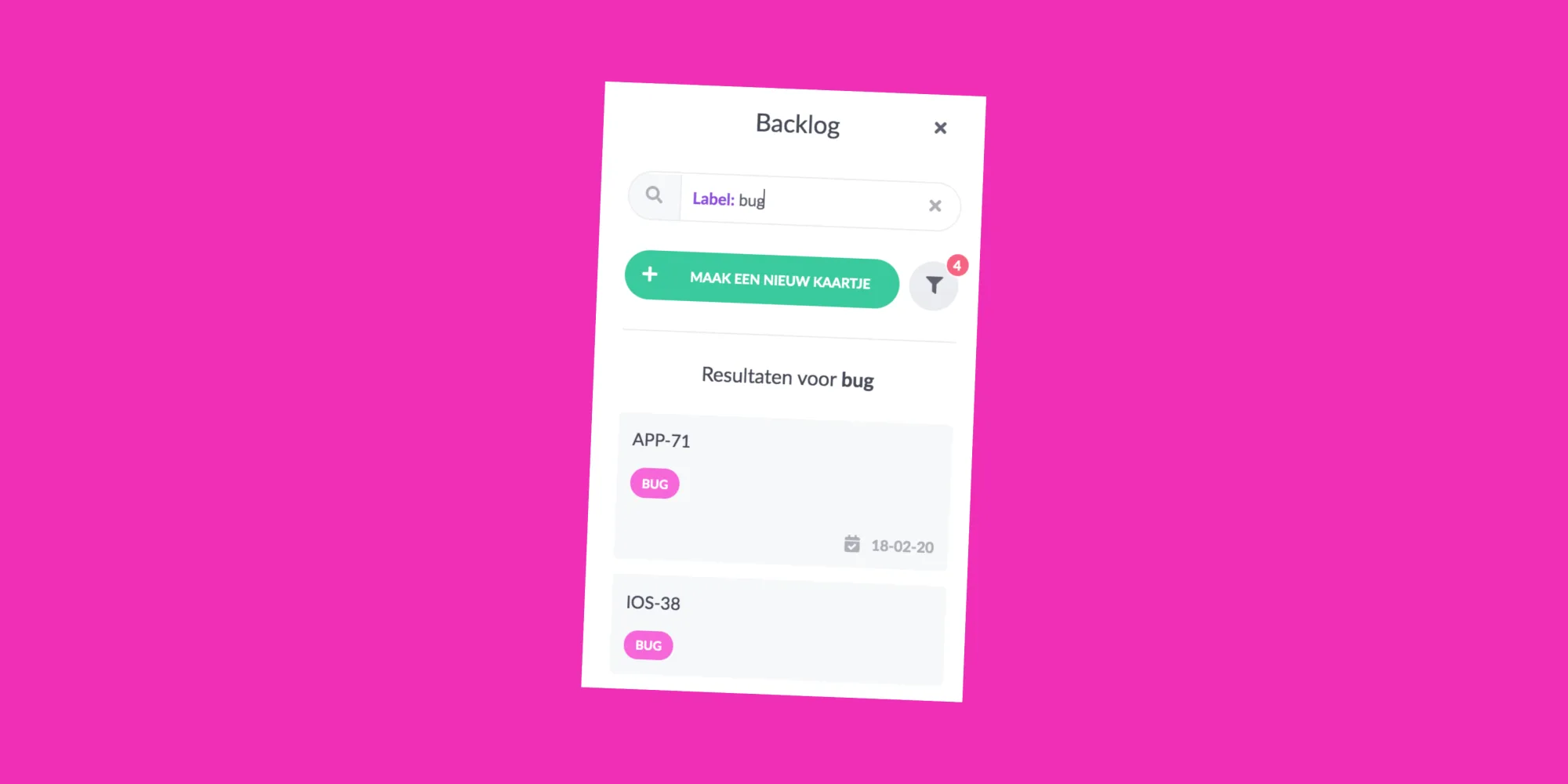
Did you know that you can search very specifically on fields and attributes of cards in the backlog? Specific orders from a certain warehouse? Or cards with a specific label? Search specifically on items and/or activities.
5. Filter and Sort in the Backlog
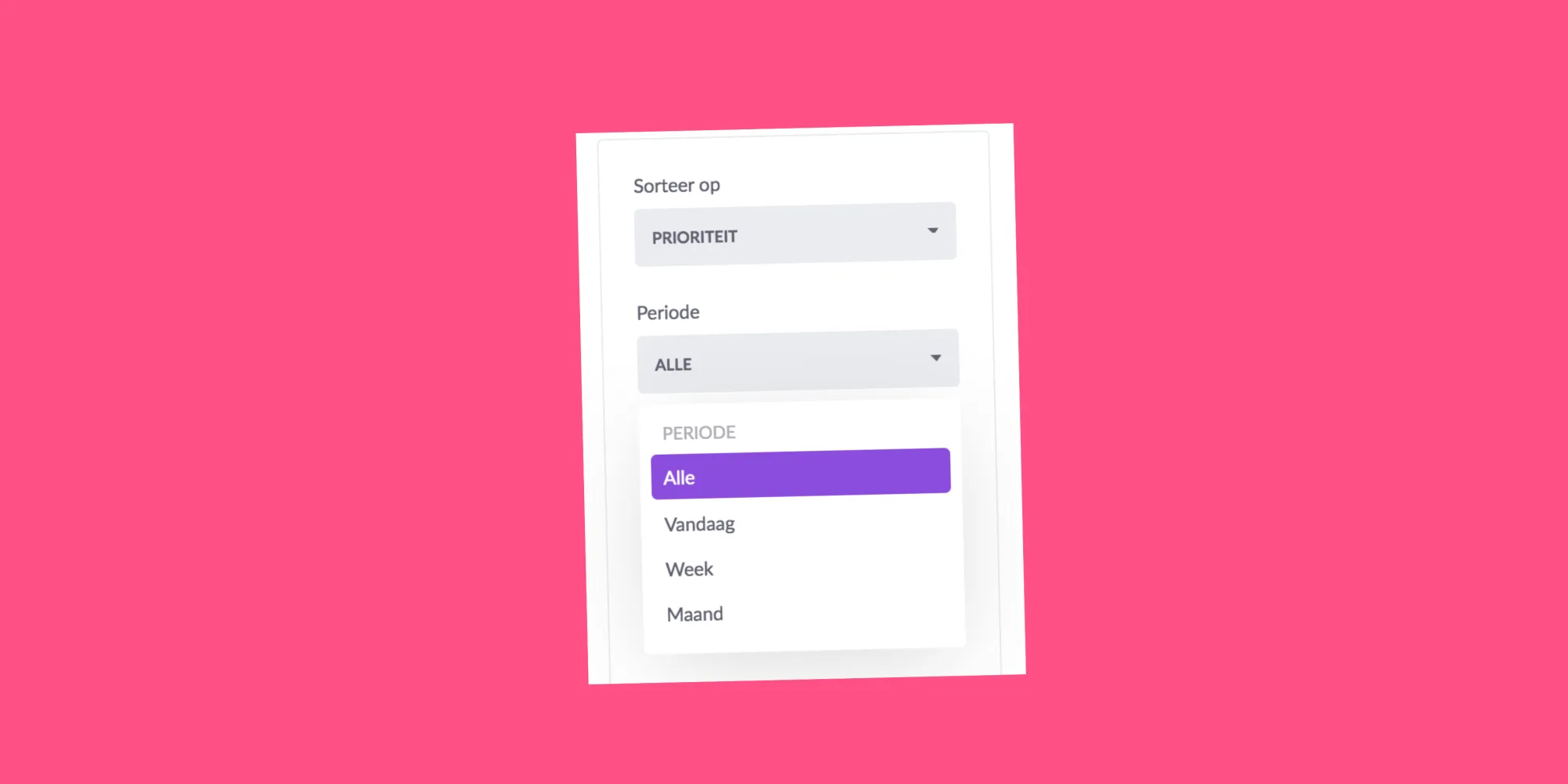
In the backlog, you can easily and quickly sort all your unplanned work based on various properties:
- Priority (position in the backlog)
- Expiry date on the card
- Name (alphabetical)
- Created (based on creation date)
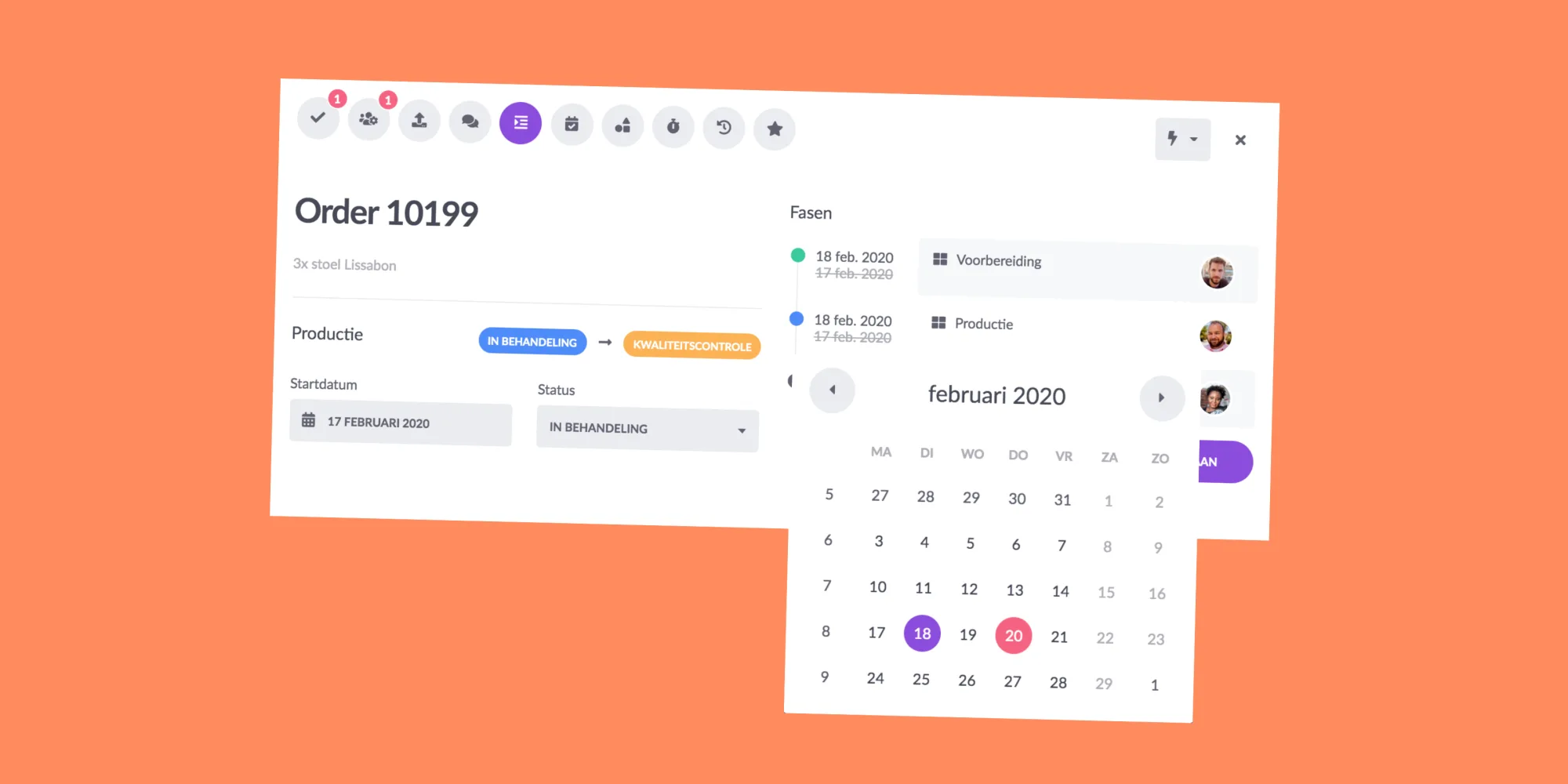
6. Quickly Edit Data of Cards within Collection
When you plan collections, where multiple cards are added on different days and different phases, you can quickly and easily edit data.
7. Quickly Select Multiple Cards
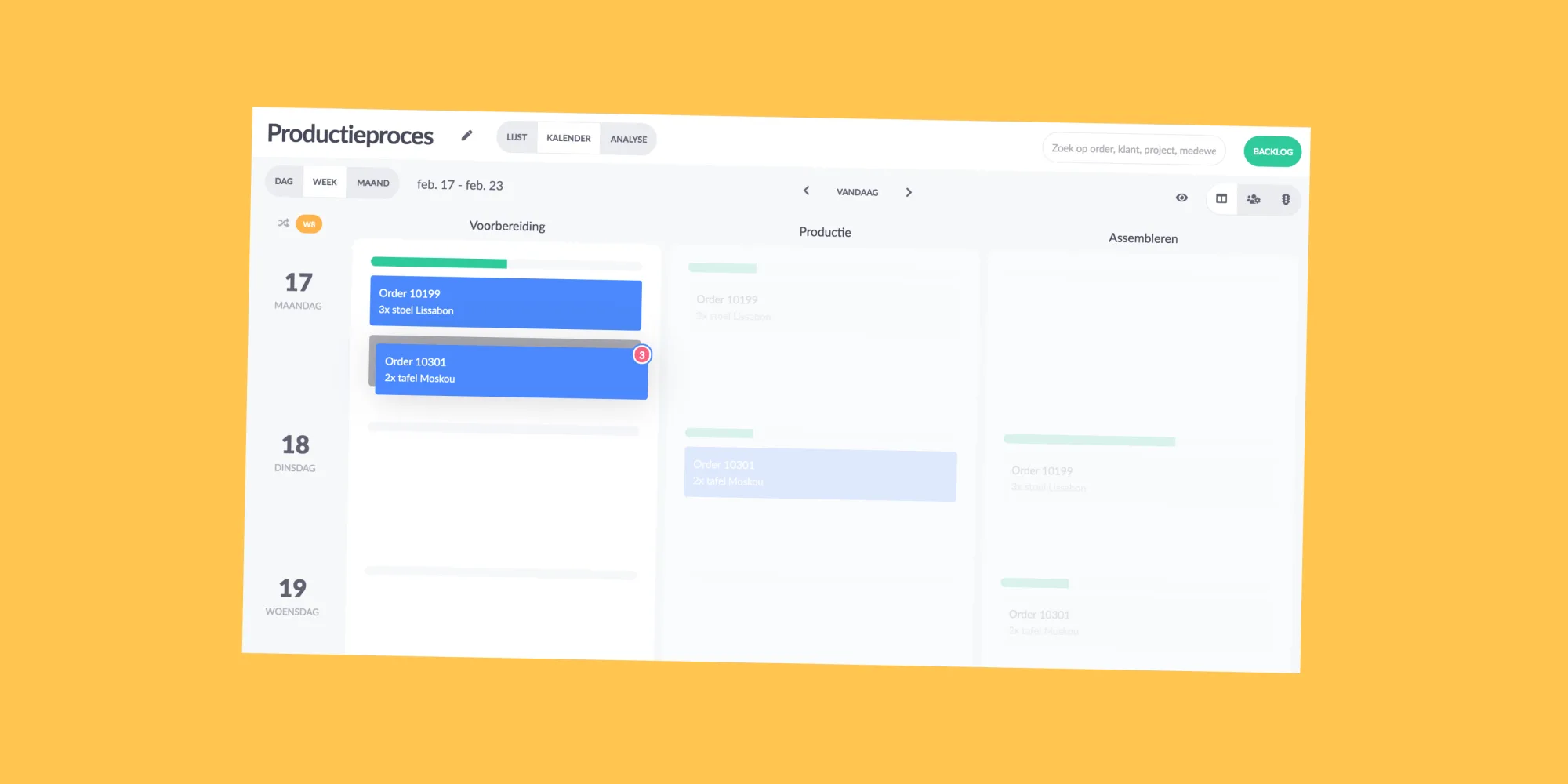
With the use of the Control (Windows) or Command (Apple) key, combined with the cursor, you can easily and quickly move multiple cards. You can also use the Shift key, so you can select a whole series at once.
8. Keyboard Shortcuts
Door gebruik van sneltoetsen op je toetsenbord kun je snel switchen tussen periodes. Daarnaast kun je snel bepalen wat je wil weergeven in je kalenderoverzicht:
Period selection:
M: month
W: week
D: day
Left arrow: previous period
Right arrow: next period
Navigation:
Up arrow: scroll up Down arrow: scroll down
Spacebar: scroll down to the next day or phase (list)
ESC: Close window (such as backlog or card)

9. Tag Your colleague
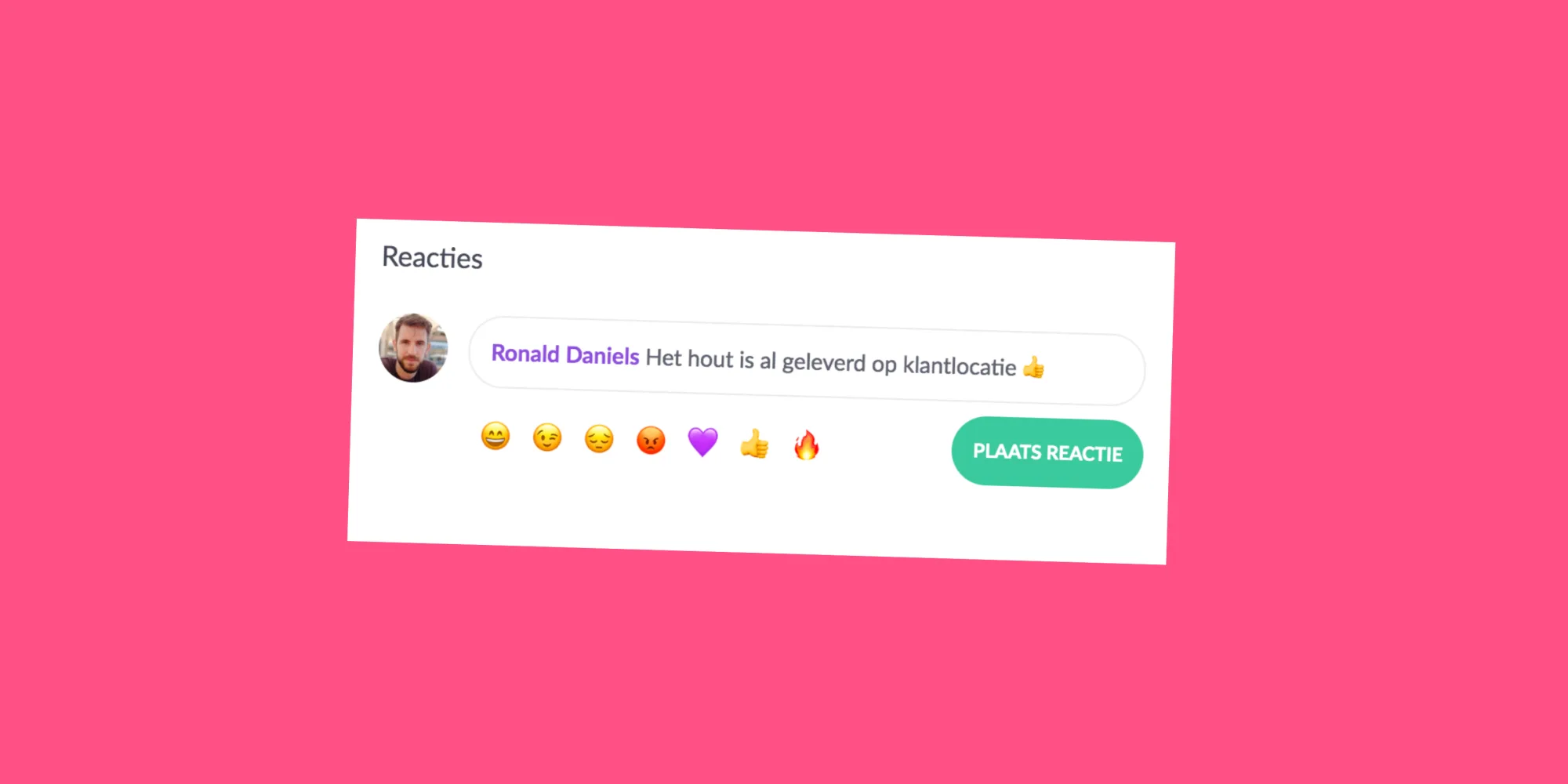
Do you want your colleague to be informed about a specific message? Tag him or her in a comment on a card. Based on his user settings, he will automatically receive a notification in vPlan's message center, by email, in the browser, or as a push notification on his mobile.
10. Mark Vacation Days
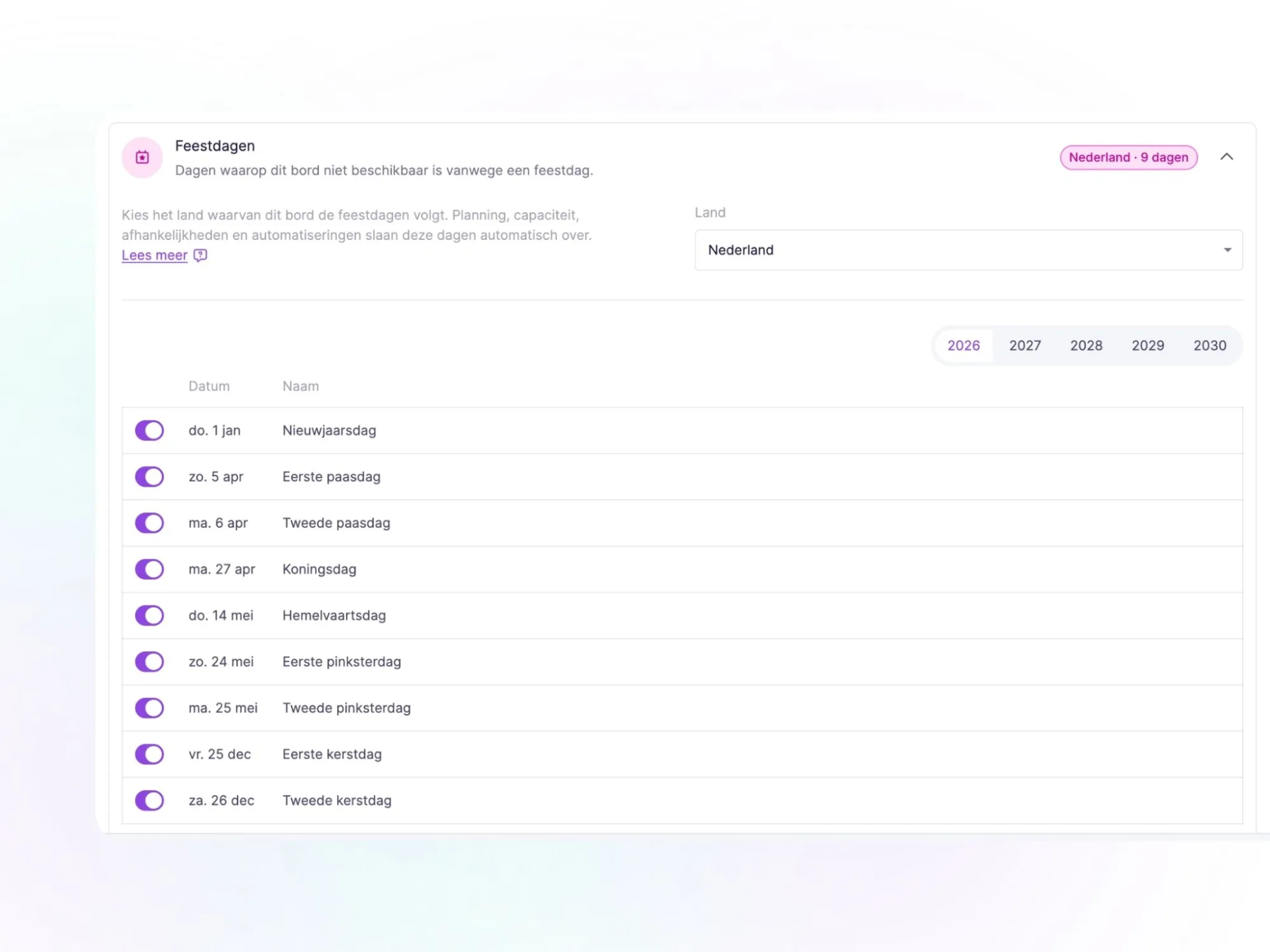
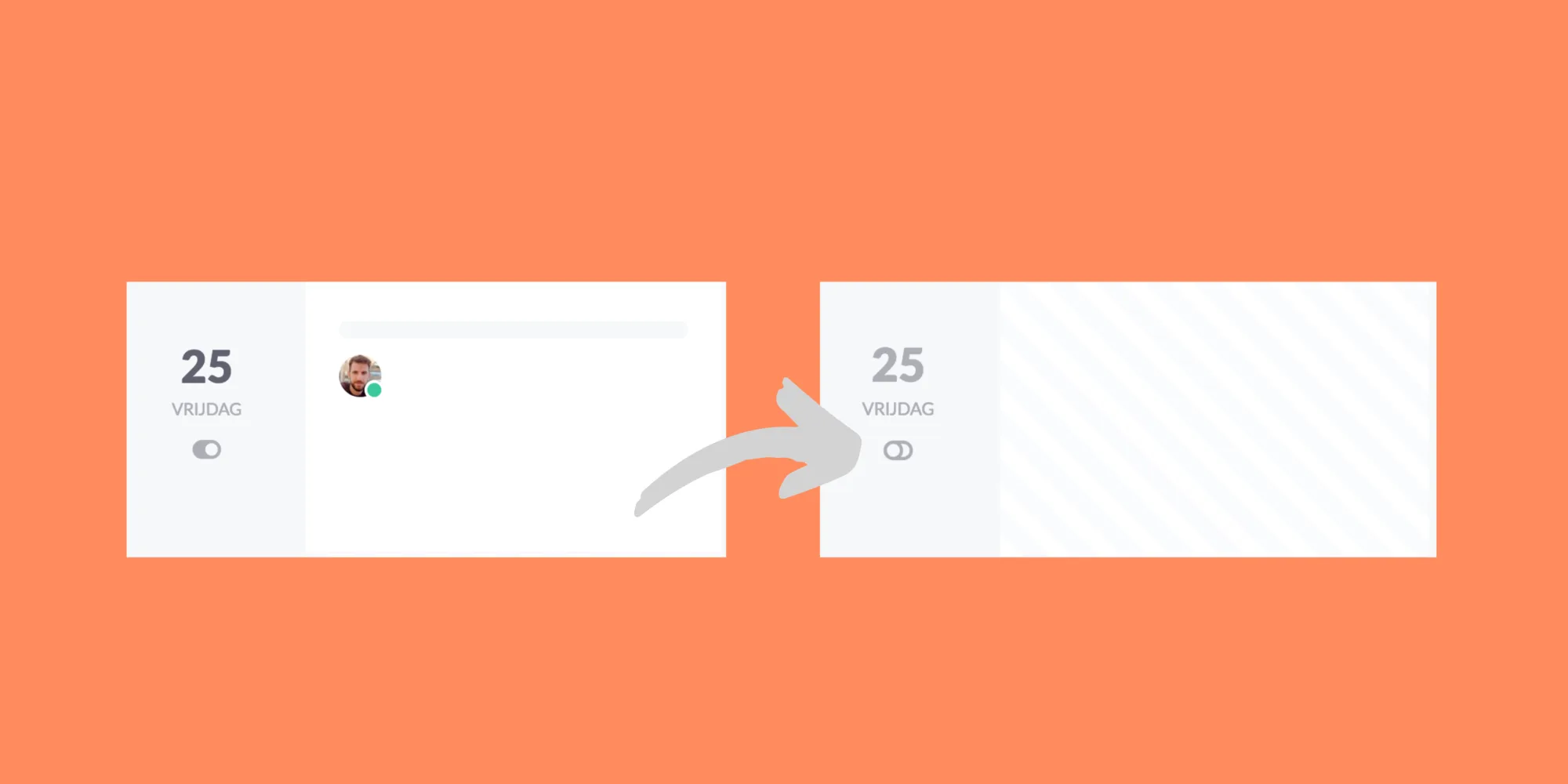
Do you have days in your schedule when the entire company is closed? You can easily "mark" these days. This way, it's visually clear that this day is not intended for scheduling work.
In the video below, we'll show you various tips & tricks within vPlan.
Try it in your own vPlan
Every new feature is in the free trial.