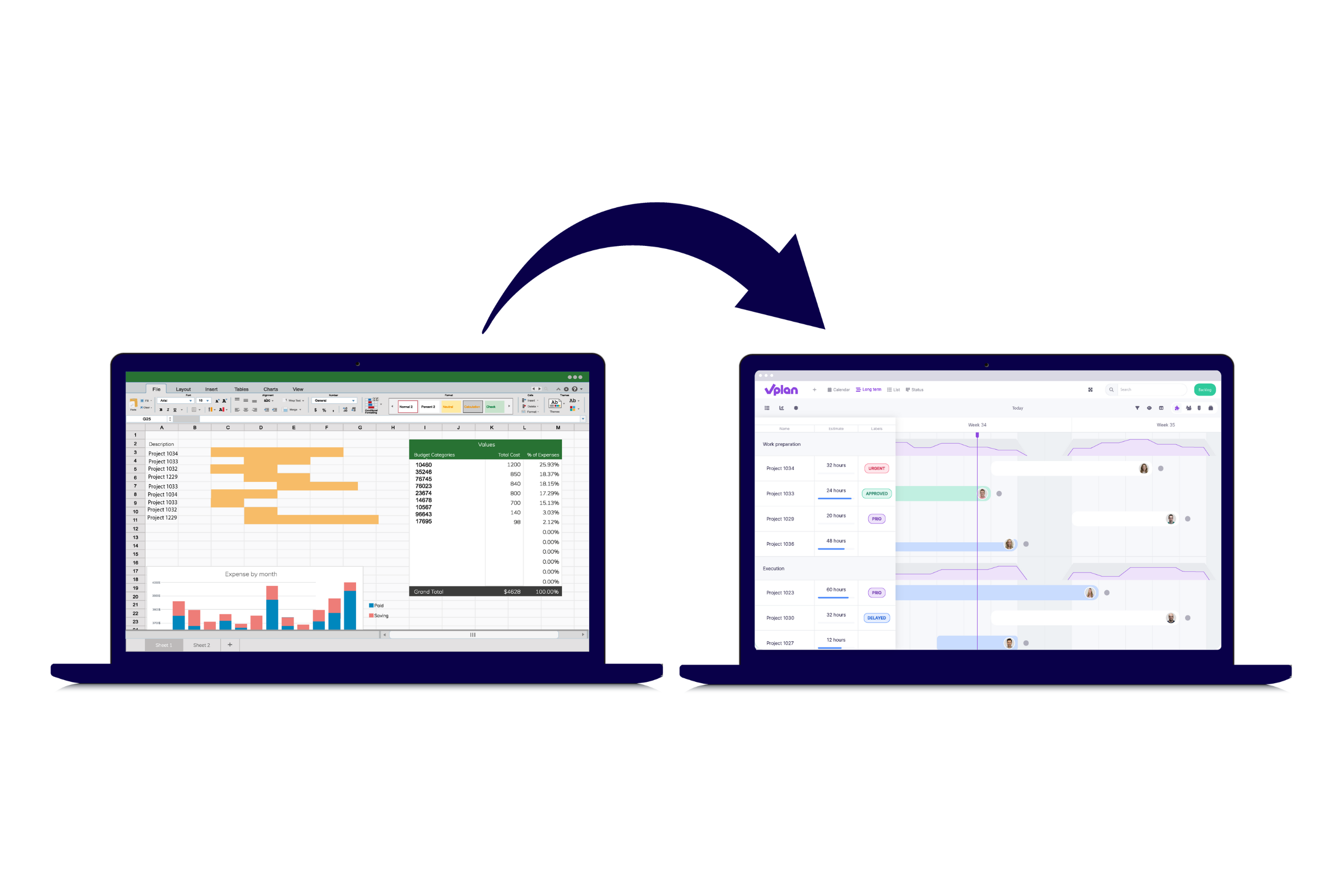
Why switch from Excel to a planning tool?
Excel is often a first choice, but it has clear limitations when it comes to complex planning:
❌ No real-time insight: changes are not immediately visible to others.
❌ Prone to errors: a single incorrect formula can disrupt the planning.
❌ Limited collaboration: multiple users at once is inconvenient.
❌ No automatic reports or notifications.
A planning tool (such as vPlan, but also similar software) does offer:
✅ Visual planning with drag & drop.
✅ Automatic updates and notifications.
✅ Integrations with ERP and accounting software.
✅ Easy collaboration between teams.
✅ Better reporting and progress monitoring.
In short: you work faster, more clearly, and with fewer errors.
1️⃣ Analyse your current Excel planning
Start with a brief audit of your current planning in Excel. What information are you currently using? Think of tasks, deadlines, teams, status or availability.
This inventory will help you determine which data is essential for your new planning tool.
"Tip: make a note of what works well in Excel and what is frustrating. That forms a strong foundation for setting up your new system."
2️⃣ Map out your ideal planning process
Don’t just use the switch to migrate, use it to improve.
Ask yourself:
- What exactly do I want to plan (projects, people, machines)?
- Who needs to view or edit the planning?
- What data do I want to report on or measure?
By clearly defining how your process should ideally work beforehand, you’ll avoid copying the limitations of Excel into your new environment.
3️⃣ Choose the right planning software
There are dozens of tools available, from simple task boards to advanced resource planning.
When making your choice, consider:
- Ease of use - an intuitive interface for faster adoption.
- Integrations - with ERP, CRM or accounting (such as Exact, AFAS, SnelStart).
- Scalability - does it suit your growth?
- Support - do you get help with implementation?
- Features - such as capacity planning, notifications or AI assistance.
"Tip: try out different tools in a short pilot phase. This will help you discover which one best fits your way of working."
4️⃣ Set up your planning software properly
A good setup is the key to success.
- Create clear planning boards per department or project type.
- Set up columns for status, responsible person and deadlines.
- Use templates for recurring projects or workflows.
Consider working with an implementation partner or consultant. This way, you’ll make the most of the software and start off with a solid foundation.
5️⃣ Import or rebuild your planning from scratch
Many tools offer import options from Excel. Still, it’s often smarter to start fresh. Use your old Excel planning as a reference, but build the new planning directly within the software.
Are you working with an ERP or CRM system? Then you can link data automatically via an API. This prevents manual entry and double administration.
"Extra tip: start with one project or department as a test environment. This allows you to make improvements calmly before fully switching over."
6️⃣ Train and involve your team
The switch to planning software is not just technical, but also cultural. Your team is used to Excel, so clear guidance is crucial.
- Plan a short training or demo.
- Show how it benefits everyone’s work.
- Appoint a "planning champion": someone who can help colleagues with questions.
An engaged team ensures faster adoption and prevents people from falling back into old habits.
Common mistakes when switching over
To ensure a smooth implementation, avoid these pitfalls:
- ⚠️ Starting too quickly without a plan: carry out a process analysis first.
- ⚠️ Trying to do too much at once: start with a pilot.
- ⚠️ No user involvement: involve your team from the start.
By working in phases and actively involving staff, you significantly increase your chances of success.
Turn your planning into a strategic tool
The switch from Excel to planning software isn’t just about convenience, it’s also an opportunity to help your organisation work smarter.
A modern planning tool often provides valuable insights: you spot bottlenecks more quickly, make better forecasts, and collaborate more closely across teams. While Excel is mainly about recording, planning software actively helps you manage capacity, deadlines, and priorities.
By linking the implementation to your business goals (such as shorter lead times or higher delivery reliability), you’ll gain much more than just a digital replacement for Excel.
Ready to take the next step? 🚀
The switch from Excel to planning software is an investment in clarity, efficiency, and collaboration. Whether you manage a small team or complex projects, the right approach will future-proof your planning.
👉 Want to see what this looks like in practice?
Book a no-obligation demo or discover how vPlan can strengthen your planning process. Together, we’ll ensure a smooth transition and lasting results.
Frequently asked questions
Is the switch from Excel to planning software difficult?
The switch is easier than you might think. vPlan is a user-friendly tool that you can get started with quickly. We guide you step by step, making planning simple. This allows you to transition smoothly in a short time and benefit from all the advantages vPlan offers.
Can I continue using my old Excel files?
Yes, you can certainly keep and use your old Excel files. But with vPlan, you plan in a smarter way and collaborate more efficiently. Our customers quickly found they no longer needed their Excel sheets. Running the planning in parallel isn’t really necessary, as it’s much easier to work directly from a single planning.
Is planning software suitable for small teams?
Absolutely! Planning software like vPlan is suitable for both small teams and large organisations. It is flexible and can be adapted to the size of your team and your needs.
How long does it take to get used to vPlan?
Most users find their way around vPlan within a few days. It’s a user-friendly and visual tool that works intuitively. With our training and support, you’ll be up and running in no time.
How can I see the results of my Excel formulas in vPlan?
The list view in vPlan resembles an Excel spreadsheet, where you can decide which information appears in the columns. You can also set up formulas, just like in Excel. In addition, vPlan offers custom formulas. You can also use vPlan AI for help with complex calculations.
How do I keep an overview of different tabs in vPlan?
In vPlan, you work with a single project planning. You can view this in different ways using filters. This allows you to create views for, for example, preparation, production, and assembly. When you move a project in the planning, it is instantly updated across all views.
Did you previously use various tabs for different departments like marketing, finance, and production? In vPlan, you can easily visualise these with separate planning boards and assign specific team members to each board.

Work at vPlan
We are looking for new colleagues.